How do I apply and undo changes in Google Sheets?
From a completed reconciliation, open the sheet update step: Meses shows a plan of ready changes, you choose which changes to apply and, once written, Meses confirms each one landed correctly. If something does not look right, you can undo a verified apply from the same page.
1. Review the proposed changes
- From a completed reconciliation, open the sheet update step to review the proposed plan.
- Each row shows the resident and unit, the concept and period, the date, the amount and the destination cells.
- Changes that belong to the same payment are selected together, so no payment is ever half-written.
- Select the changes you want to apply.
2. Understand what is excluded
- The preview’s “Not included — needs review first” section clearly lists the payments left out.
- That covers unresolved payments and any payment without a clear place in your sheet.
- Review those items in the reconciliation; Meses does not write them.
3. Apply and verify changes
- Meses writes only after you start the apply.
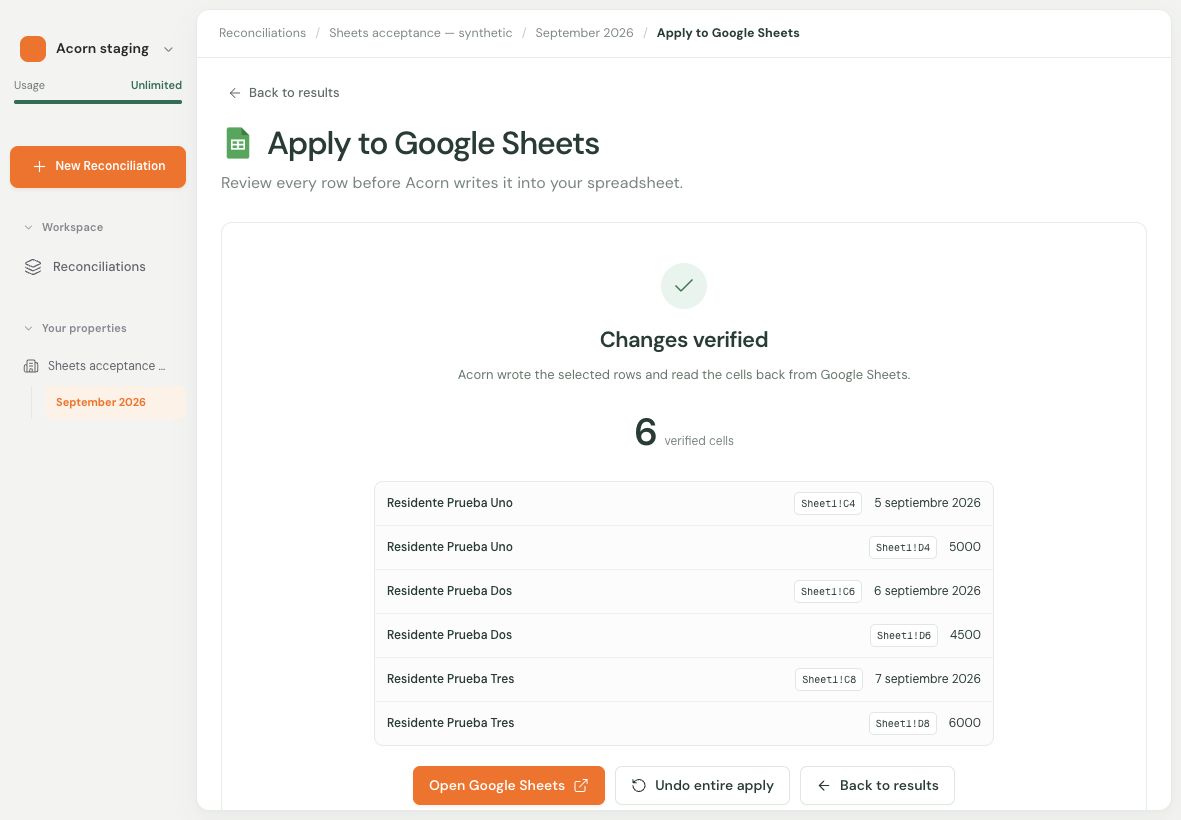
- When it finishes, Meses checks that each change was written correctly and confirms it to you.
- If you close the page, the operation status is kept and you see it when you return.
- If the result is uncertain, check the spreadsheet first before trying again.
4. Undo a verified apply
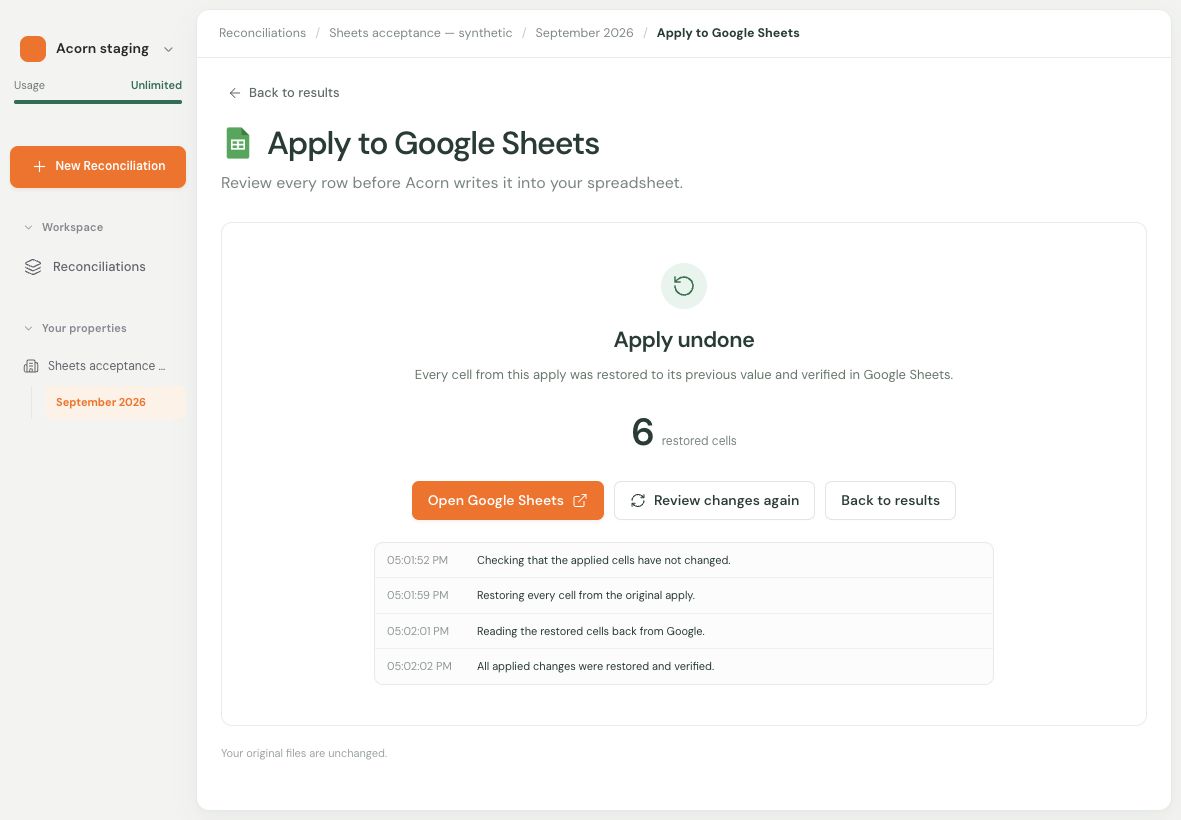
- A verified apply can be undone from the same page.
- If someone edited those cells afterwards, Meses restores nothing, so newer work is not lost; review the spreadsheet directly.
- After a verified undo, you can review and apply the changes again.